
Build a course
Writing pages
The Content tab - generating pages, editing them in a real Markdown editor, and a preview that renders code, diagrams and formulas the way BookStack will.
The Content tab is where pages get written: by the AI in this tab while you watch, by a background run or a batch, or by hand. Three panes on a wide screen:
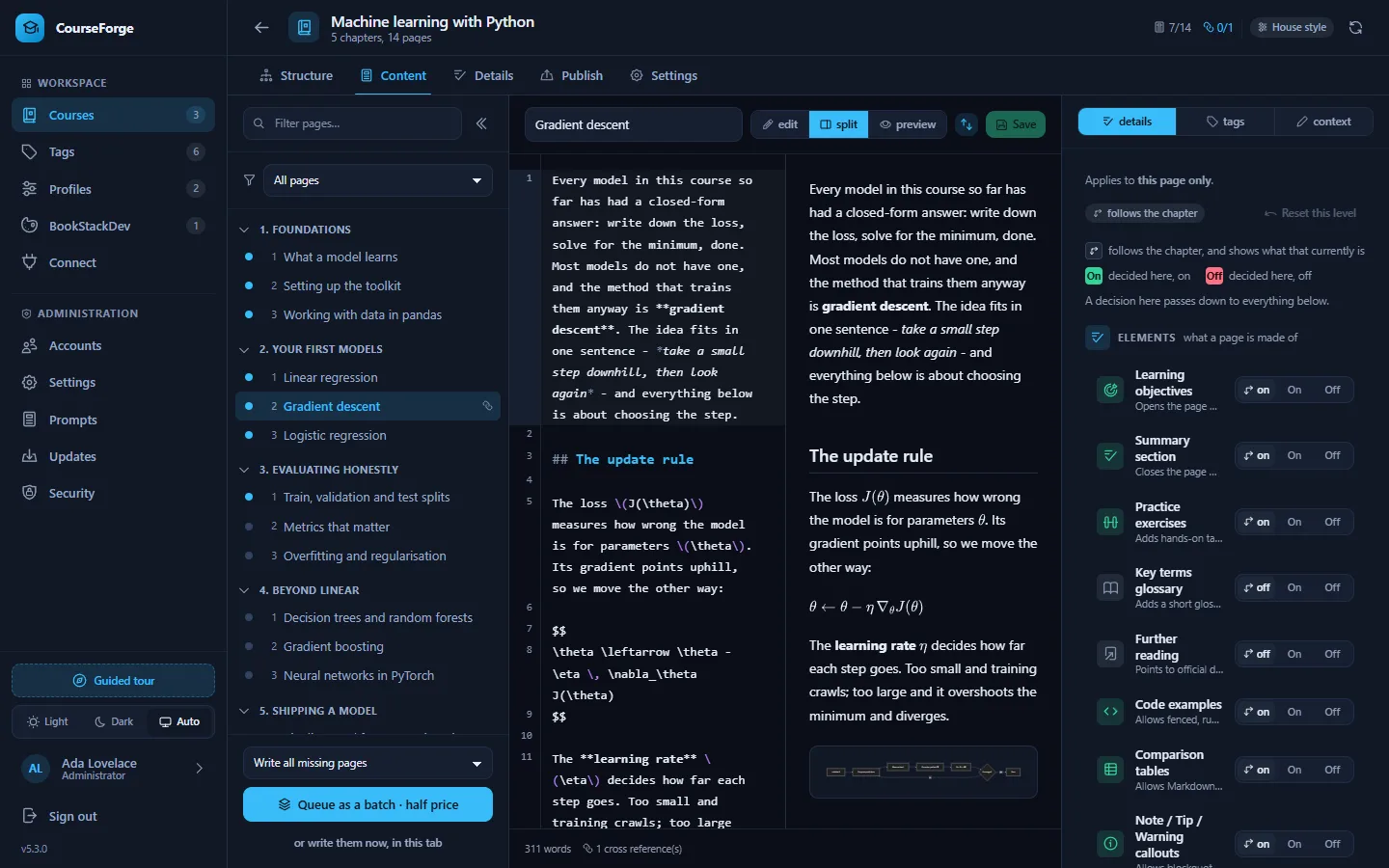
- Left: the outline, with a status dot per page, a filter, a search box and the generation controls at the bottom.
- Middle: the editor: the page title, the Markdown body in edit, split or preview mode, a word count and a link to the published page.
- Right: the inspector - details, tags and context for whatever is selected. Below 1280 px it becomes a slide-over.
Selecting a chapter instead of a page turns the middle pane into a chapter editor (title and goal) and points the inspector at the chapter.
Page status#
| Dot | Status |
|---|---|
| grey | not written yet |
| amber, pulsing | being written right now |
| blue | written |
| amber | changed since it was last published |
| green | published and in sync |
| red | the last attempt failed - hover for the reason |
The filter above the outline narrows the list to Not written yet, Written, Changed since publish or Failed. A link icon marks pages that contain cross-reference markers (Auto links).
Generating pages#
The panel at the bottom of the outline chooses what to write:
| Choice | Writes |
|---|---|
| Write all missing pages | every page that has no text yet |
| Write the next N pages | the next N unwritten pages in reading order |
| Retry the failed pages | only the pages whose last attempt failed |
| Rewrite everything | every page, replacing what is there |
…and how:
- In this tab - the browser runs as many requests in parallel as the profile allows and you watch each page land. Pages already written are kept; Stop stops. It is a loop in the browser, so it stops when the tab closes.
- As a run - the server takes over, in the background from the scheduler, or through the provider's batch queue at about half price. The button offers whichever the course is set up for, with or write them now, in this tab underneath. A run shows as a card with its own progress and is still there tomorrow.
Which to use, what each costs and how to stop one is on Runs.
A page that belongs to a run cannot be started again - not by a second run, not by the in-tab generator, not by Rewrite this page. The database enforces it, so two browser tabs cannot both start the same course.
What the AI is told about a page#
Every page is written from a brief that carries:
- the course map - every chapter, and every page with its title and scope, numbered
chapter.page; - its own chapter and the chapter's goal;
- its own place, scope and tags, and the pages either side of it;
- the section headings of the pages already written in its chapter, which is where plans drift;
- the resolved content details - which elements to include, how long, for whom;
- the course's research briefing, if it has one;
- the page's extra context, and on a rewrite your feedback.
That is how a page knows what the others teach without reading them. The shared part is the same for every page and is cached by the provider. The full assembly order is on The prompt library; the reasoning and the measurements are on Tokens and caching.
Steering one page#
The inspector's context tab holds two things the AI reads for this page only:
- Scope - what this page alone teaches. The same line as in the outline; editing it here rewrites the outline.
- Extra context - facts and instructions that outrank the model's own assumptions: "use the
uvworkflow, not pip", "the examples target PostgreSQL 18". Saved with the page and sent with every generation of it.
To correct a page that is already written, type the correction into the feedback box and click Rewrite this page. The AI receives the existing text and your feedback and rewrites the page. Leaving the box empty writes the page from scratch.
The inspector's details tab overrides the course's content details for this page; tags attaches tags to it.
The Markdown editor#
The left half of the editor is a full CodeMirror editor, not a text box:
- Headings, emphasis, links, quotes, list markers and inline code are highlighted as you type; a fenced block is highlighted in its own language, for over a hundred languages.
- Two CourseForge markers are picked out, so a malformed one is visible before it is published: a cross reference
(🔗 Exact Title)and an Anki cloze{{c1::hidden text}}. Ctrl+Ffinds,Ctrl+Z/Ctrl+Yundo and redo,Tabindents, brackets close themselves, long lines wrap. Undo history belongs to the page: switching pages cannot undo into the wrong one.Ctrl+Ssaves. Leaving with unsaved edits asks first.
The preview#
The right half renders the page the way BookStack will:
- Code is highlighted with the grammars VS Code uses, in 232 languages, loaded one grammar at a time as they are needed. Every block has a header with its language and three controls: copy, line numbers and line wrapping (the last two apply everywhere and are remembered).
- Diagrams: a
```mermaidblock is drawn as you type. A diagram that does not parse shows Mermaid's own error with the line and column, which is the point of having it here rather than discovering it after a publish. - Formulas:
\( … \)inline and$$ … $$display maths are typeset with MathJax - the delimiters the prompts ask for and BookStack renders. A single$is left alone, so prices stay prices.
In split mode the two halves scroll together, matched block by block rather than by percentage, so a tall diagram does not throw the alignment off. The ⇅ button turns linking off and on; whichever half you touched last leads.
Code blocks with no language, or the wrong one#
AIs write many fenced blocks and do not always label them. When a fence names no language, says text, or names a language that clearly does not match its contents, CourseForge reads the block and works the language out - in the preview and the editor alike.
It is built to decline rather than guess. Each language is recognised by things that are hard to write by accident (defmodule, #include <stdio.h>, let mut, { get; set; }), and a guess is only used when one language is well clear of every other. Program output, a directory tree or a line of prose stays plain.
| The fence says | What it takes to override it |
|---|---|
| nothing | a clear winner |
text, plain, none |
a strong winner - the author may have meant it |
| a language | an emphatic one, for a language the detector can assess |
A language that was worked out rather than read off the fence is marked auto in the block header; hover it to see what happened.
Word counts#
The word count under the editor is the same count get_page and the course list report, over the Markdown as stored. Chinese and Japanese are counted by character.
Punctuation#
Generated pages have their quotation marks, apostrophes, dashes and spacing set the way the course language sets them before they are stored. Punctuation in the inspector applies the same rules to one page by hand; the chapter editor has the same button for a chapter. See Punctuation.
Publishing one page#
Publish just this page in the inspector sends the selected page to every destination of the course; the chapter editor's Publish chapter does the same for a chapter and its pages. See Publishing.